This guide explains how to locate the default file path in FastPanel and how to upload a backup file from one server to another using SSH.
Step 1: Log in to FastPanel
Go to your FastPanel login page.
Enter your username and password, then click Log In.

Step 2: Select Your Domain
After logging in, locate the domain’s site card.
Click on it to access domain settings.
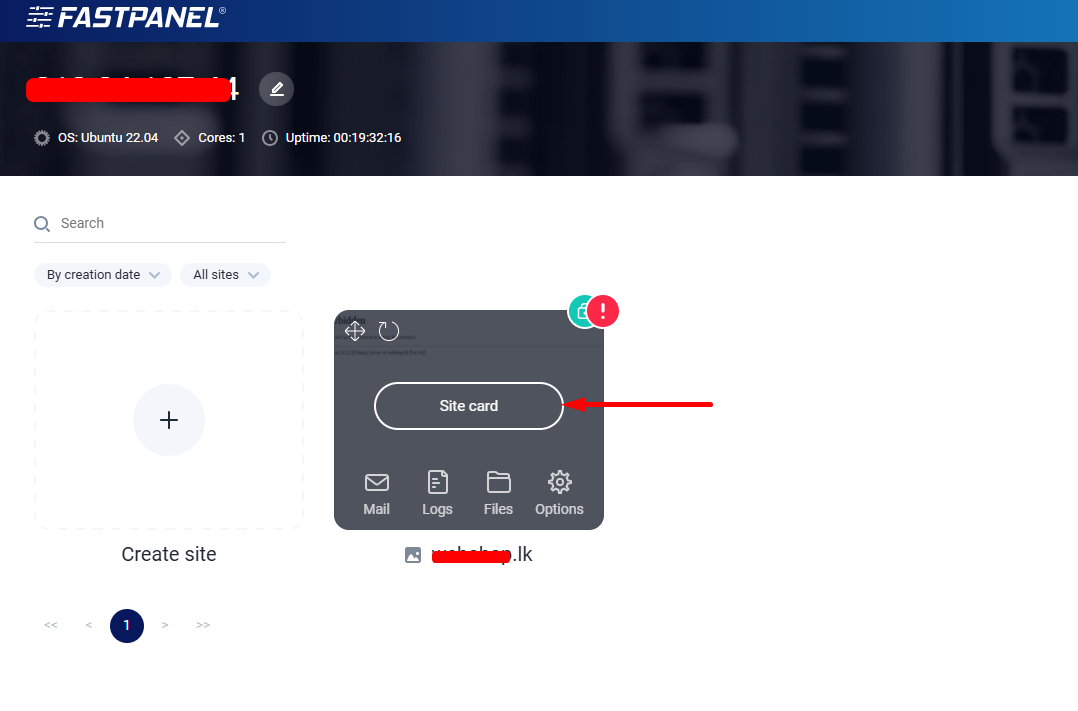
Step 3: Locate the Default Website File Path
In the domain details section, you’ll see the default file path.
Example path:
/var/www/fastpanel_user/data/www/your_domain
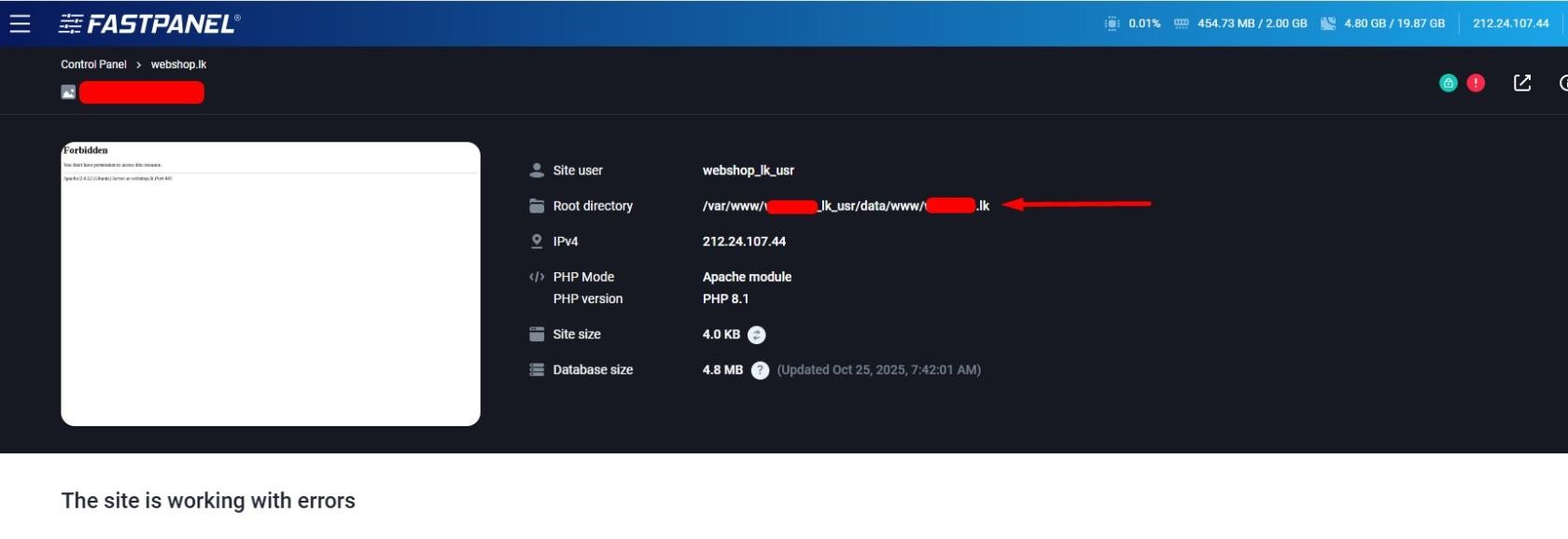
Step 4: Connect to Your Server via SSH###
Use an SSH client (like Terminal or PuTTY) and log in as
root
Step 5: Navigate to Your Website Directory
Use the cd command to change directory.
Example:
cd /var/www/fastpanel_user/data/www/your_domain
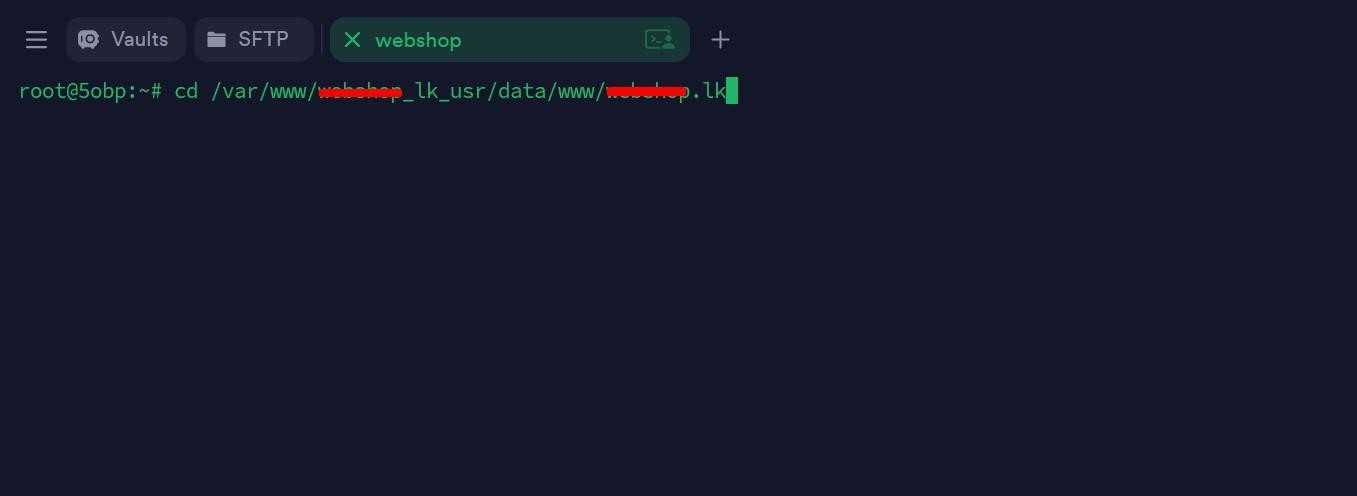
Step 6: Download Your Backup File
Use the wget command to fetch the file from a remote server or download link:
wget http://example.com/your-backup-file.tar.gz
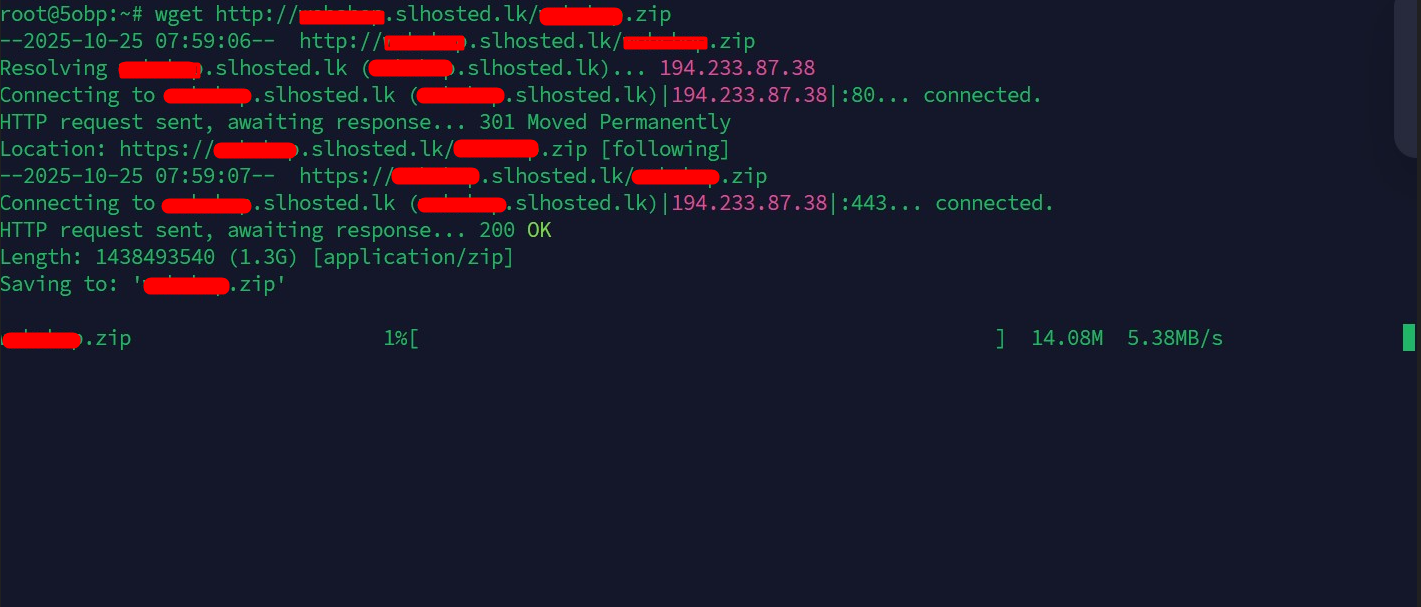
Step 7: Extract or Move the Backup File
Once the backup file is downloaded, you can extract or move it using the following methods:
Option 1: Use SSH Commands
Use common Linux commands:
To extract:
tar -xvzf your-backup-file.tar.gz
To move:
mv your-backup-file.tar.gz /path/to/destination/
To copy:
cp your-backup-file.tar.gz /path/to/destination/
Option 2: Use FastPanel File Manager
Log in to your FastPanel.
Navigate to the file manager for your domain.
Locate the uploaded .zip or .tar.gz file.
Use the “Extract” option from the file manager interface to unpack the backup.
